
【一】安装 【1.1】系统环境 系统环境:CentOS Linux release 7.6.1708 (Core) 系统内存:4G 系统内核:1 Python:3.6.4 关闭iptables and selinux 本次安装采用的是外部MySQL 5.7 【1.2】关闭 iptables [root@localhost ~]# systemctl stop firewalld.service //关闭iptables [root@localhost ~]# systemctl disable firewalld.service //开机 禁止启动 iptables 【1.3】禁用 selinux 以及安装 Python [root@localhost ~]# vim /etc/sysconfig/selinux # This file controls the state of SELinux on the system. # SELINUX= can take one of these three values: # enforcing - SELinux security policy is enforced. # permissive - SELinux prints warnings instead of enforcing. # disabled - No SELinux policy is loaded. SELINUX=disabled // 改成 disabled # SELINUXTYPE= can take one of three two values: # targeted - Targeted processes are protected, # minimum - Modification of targeted policy. Only selected processes are protected. # mls - Multi Level Security protection. SELINUXTYPE=targeted 【1.3.1】Python 安装 [root@localhost ~]# cd /root/software [root@localhost software]# yum -y install zlib-* [root@localhost software]# wget https://www.python.org/ftp/python/3.6.4/Python-3.6.4.tgz [root@localhost software]# tar -zxvf Python-3.6.4.tgz [root@localhost software]# mkdir -p /usr/local/python3 [root@localhost software]# cd Python-3.6.4/ [root@localhost Python-3.6.4]# ./configure --prefix=/usr/local/python3 [root@localhost Python-3.6.4]# make [root@localhost Python-3.6.4]# make install [root@localhost Python-3.6.4]# mv /usr/bin/python /usr/bin/python_bak //修改旧版本 [root@localhost Python-3.6.4]# ln -s /usr/local/python3/bin/python3 /usr/bin/python //创建新的软连接 [root@localhost Python-3.6.4]# python -V //检查python的版本 Python 3.6.4 [root@localhost Python-3.6.4]# vim ~/.bash_profile //配置成功后,pip3用不了,需要进一步配置将/usr/local/python3/bin加入PATH # .bash_profile # Get the aliases and functions if [ -f ~/.bashrc ]; then . ~/.bashrc fi # User specific environment and startup programs PATH=$PATH:$HOME/bin:/usr/local/python3/bin export PATH [root@localhost Python-3.6.4]# source ~/.bash_profile // 让环境变量生效 【1.3.2】配置 yum 源 否则 yum 不可用 [root@localhost Python-3.6.4]# yum -y update //显然上面的 except 是python2的写法,当然不能使用默认的Python3来执行了。于是把这个文件第1行的 #!/usr/bin/python 替换成 #!/usr/bin/python2.7 File "/usr/bin/yum", line 30 except KeyboardInterrupt, e: ^ SyntaxError: invalid syntax [root@localhost Python-3.6.4]# vim /usr/bin/yum 于是把这个文件第1行的 #!/usr/bin/python 替换成 #!/usr/bin/python2.7 【1.4】安装 MySQL [root@localhost ~]# cd /etc/yum.repos.d/ [root@localhost yum.repos.d]# vim mysql.repos [mysql5.7-community] name=MySQL 5.7 Community Server baseurl=http://repo.mysql.com/yum/mysql-5.7-community/el/7/$basearch/ enabled=1 gpgcheck=0 [root@localhost yum.repos.d]# yum -y install mysql-* //等待 安装 执行完成 【1.5】启动MySQL服务 以及 设置开机启动 [root@localhost yum.repos.d]# systemctl start mysqld [root@localhost yum.repos.d]# systemctl enable mysqld [root@localhost yum.repos.d]# systemctl daemon-reload 【1.6】查看 mysql 的初始密码 [root@localhost yum.repos.d]# grep 'temporary password' /var/log/mysqld.log 2019-06-25T03:27:20.334210Z 1 [Note] A temporary password is generated for root@localhost: GIutnKkR%7fe 【1.7】登录 mysql 环境做配置以及修改参数 [root@localhost yum.repos.d]# mysql -uroot -pGIutnKkR%7fe //回车进入数据库 mysql> set global validate_password_policy=0; mysql> set global validate_password_length=1; mysql> set global validate_password_mixed_case_count=2; mysql> show variables like 'validate_password%'; +--------------------------------------+-------+ | Variable_name | Value | +--------------------------------------+-------+ | validate_password_check_user_name | OFF | | validate_password_dictionary_file | | | validate_password_length | 6 | | validate_password_mixed_case_count | 2 | | validate_password_number_count | 1 | | validate_password_policy | LOW | | validate_password_special_char_count | 1 | +--------------------------------------+-------+ 7 rows in set (0.02 sec) mysql> alter user 'root'@'localhost' identified by '123456'; mysql> flush privileges; mysql> quit; 【1.8】创建 Yearning 数据库 与 用户 和 密码 并且授权 [root@localhost yum.repos.d]# mysql -uroot -p123456 mysql> create database Yearning charset utf8; //创建 Yearning 库 mysql> create user 'Yearning'@'%' identified by 'Yearning'; //创建 Yearning 用户 mysql> grant all on *.* to 'Yearning'@'%' identified by 'Yearning'; //授权 Yearning 用户权限 mysql> flush privileges; mysql> quit; 【1.9】安装 docker [root@localhost ~]# yum install -y yum-utils device-mapper-persistent-data lvm2 //安装 docker 的依赖包 【1.9.1】设置yum源 [root@localhost ~]# yum-config-manager --add-repo https://download.docker.com/linux/centos/docker-ce.repo 【1.9.2】可以查看所有仓库中所有docker版本,并选择特定版本安装 [root@localhost ~]# yum list docker-ce --showduplicates | sort -r 已加载插件:fastestmirror, langpacks 已安装的软件包 可安装的软件包 * updates: ap.stykers.moe Loading mirror speeds from cached hostfile * extras: ftp.sjtu.edu.cn docker-ce.x86_64 3:18.09.6-3.el7 docker-ce-stable docker-ce.x86_64 3:18.09.6-3.el7 @docker-ce-stable docker-ce.x86_64 3:18.09.5-3.el7 docker-ce-stable docker-ce.x86_64 3:18.09.4-3.el7 docker-ce-stable docker-ce.x86_64 3:18.09.3-3.el7 docker-ce-stable docker-ce.x86_64 3:18.09.2-3.el7 docker-ce-stable docker-ce.x86_64 3:18.09.1-3.el7 docker-ce-stable docker-ce.x86_64 3:18.09.0-3.el7 docker-ce-stable docker-ce.x86_64 18.06.3.ce-3.el7 docker-ce-stable docker-ce.x86_64 18.06.2.ce-3.el7 docker-ce-stable docker-ce.x86_64 18.06.1.ce-3.el7 docker-ce-stable docker-ce.x86_64 18.06.0.ce-3.el7 docker-ce-stable docker-ce.x86_64 18.03.1.ce-1.el7.centos docker-ce-stable docker-ce.x86_64 18.03.0.ce-1.el7.centos docker-ce-stable docker-ce.x86_64 17.12.1.ce-1.el7.centos docker-ce-stable docker-ce.x86_64 17.12.0.ce-1.el7.centos docker-ce-stable docker-ce.x86_64 17.09.1.ce-1.el7.centos docker-ce-stable docker-ce.x86_64 17.09.0.ce-1.el7.centos docker-ce-stable docker-ce.x86_64 17.06.2.ce-1.el7.centos docker-ce-stable docker-ce.x86_64 17.06.1.ce-1.el7.centos docker-ce-stable docker-ce.x86_64 17.06.0.ce-1.el7.centos docker-ce-stable docker-ce.x86_64 17.03.3.ce-1.el7 docker-ce-stable docker-ce.x86_64 17.03.2.ce-1.el7.centos docker-ce-stable docker-ce.x86_64 17.03.1.ce-1.el7.centos docker-ce-stable docker-ce.x86_64 17.03.0.ce-1.el7.centos docker-ce-stable * base: ap.stykers.moe 【1.9.3】安装 docker 选择对应的版本 [root@localhost ~]# yum install docker-ce #由于repo中默认只开启stable仓库,故这里安装的是最新稳定版18.03.1.ce [root@localhost ~]# yum install <FQPN> # 例如:yum install docker-ce-18.03.1.ce [root@localhost ~]# yum install -y docker-ce-18.03.1.ce //等待安装完成 【1.9.4】启动并加入开机启动 [root@localhost ~]# systemctl start docker [root@localhost ~]# systemctl enable docker 【1.9.5】验证安装是否成功(有client和service两部分表示docker安装启动都成功了) [root@localhost ~]# docker version Client: Version: 18.09.6 API version: 1.39 Go version: go1.10.8 Git commit: 481bc77156 Built: Sat May 4 02:34:58 2019 OS/Arch: linux/amd64 Experimental: false Server: Docker Engine - Community Engine: Version: 18.09.6 API version: 1.39 (minimum version 1.12) Go version: go1.10.8 Git commit: 481bc77 Built: Sat May 4 02:02:43 2019 OS/Arch: linux/amd64 Experimental: false 【二】Inception 及 Yearning安装 【2.1】下载 Yearning 源码 [root@localhost ~]# mkdir -p /root/software [root@localhost ~]# cd /root/software [root@localhost software]# git clone https://github.com/cookieY/Yearning.git //获取 git Yearning 源码 [root@localhost software]# cd Yearning/install/yearning-docker-compose/init-sql // 进入 环境 变量下边去 [root@localhost init-sql]# mysql -uYearning -pYearning Yearning < install.sql // 导入 环境变量到数据库里面去 [root@localhost ~]# cd /root/software/Yearning/install/ // cd 到环境目录 解压 inception.tar 包 [root@localhost install]# tar -xvf inception.tar [root@localhost install]# cd inception/bin/ [root@localhost bin]# mkdir -p /var/log/inception/ // 创建 inception 日志目录 [root@localhost bin]# mkdir -p /var/run/inception/ // 创建 inception.socket 目录 [root@localhost bin]# vim inc.cnf // 修改 inception 配置文件 [inception] general_log=1 general_log_file=/var/log/inception/inception.log // inception 日志目录 port=6669 socket=/var/run/inception/inc.socket // inception.socket 存储目录 character-set-client-handshake=0 character-set-server=utf8 inception_support_charset=utf8mb4 inception_enable_nullable=0 inception_check_primary_key=1 inception_check_column_comment=1 inception_check_table_comment=1 inception_enable_blob_type=1 inception_check_column_default_value=1 inception_support_charset=utf8 inception_osc_on=OFF inception_check_column_default_value=OFF inception_check_column_comment=OFF inception_check_table_comment=OFF inception_enable_identifer_keyword=ON inception_remote_backup_host = 192.168.1.150 // 备份数据库的 IP inception_remote_backup_port = 3306 // 数据库默认端口 inception_remote_system_user = root // 数据库的权限用户_可根据自己定义 inception_remote_system_password = 123456 // 数据库的用户密码 【2.2】启动 inception 服务 [root@localhost bin]# pwd /root/software/Yearning/install/inception/bin [root@localhost bin]# nohup bin/Inception --defaults-file=inc.cnf & // 后台调度启用 【2.3】运行 Yearning 【备注:HOST=本机IP 与 MYSQL_ADDR=本机IP 后面的参数只要是按照本文操作可以不用选择。默认按照我的就行了】 [root@localhost bin]# docker run -d -e HOST=192.168.1.150 -e MYSQL_ADDR=192.168.1.150 -e MYSQL_USER=Yearning -e MYSQL_PASSWORD=Yearning -p8080:80 -p8000:8000 registry.cn-hangzhou.aliyuncs.com/cookie/yearning:v1.3.0 【三】相关配置 【3.1】访问 Yearning 访问Yearning(访问地址为你启动docker的IP地址) 登录管理员缺省值:admin / Yearning_admin
docker Yearning+Inception SQL审核平台
来源:这里教程网
时间:2026-03-01 12:15:21
作者:
编辑推荐:
下一篇:
相关推荐
-

-
-
-
-
-
-
-
-
-
-
-
-
-
-
雷神推出 MIX PRO II 迷你主机:基于 Ultra 200H,玻璃上盖 + ARGB 灯效
2 月 9 日消息,雷神 (THUNDEROBOT) 现已宣布推出基于英
-

制造商 Musnap 推出彩色墨水屏电纸书 Ocean C:支持手写笔、第三方安卓应用
2 月 10 日消息,制造商 Musnap 现已在海外推出一款 Oce

热文推荐
- 3Dmax制作木质纹理的立体玩具车教程

3Dmax制作木质纹理的立体玩具车教程
26-03-01 - 宜信开源|数据库审核软件Themis的规则解析与部署攻略
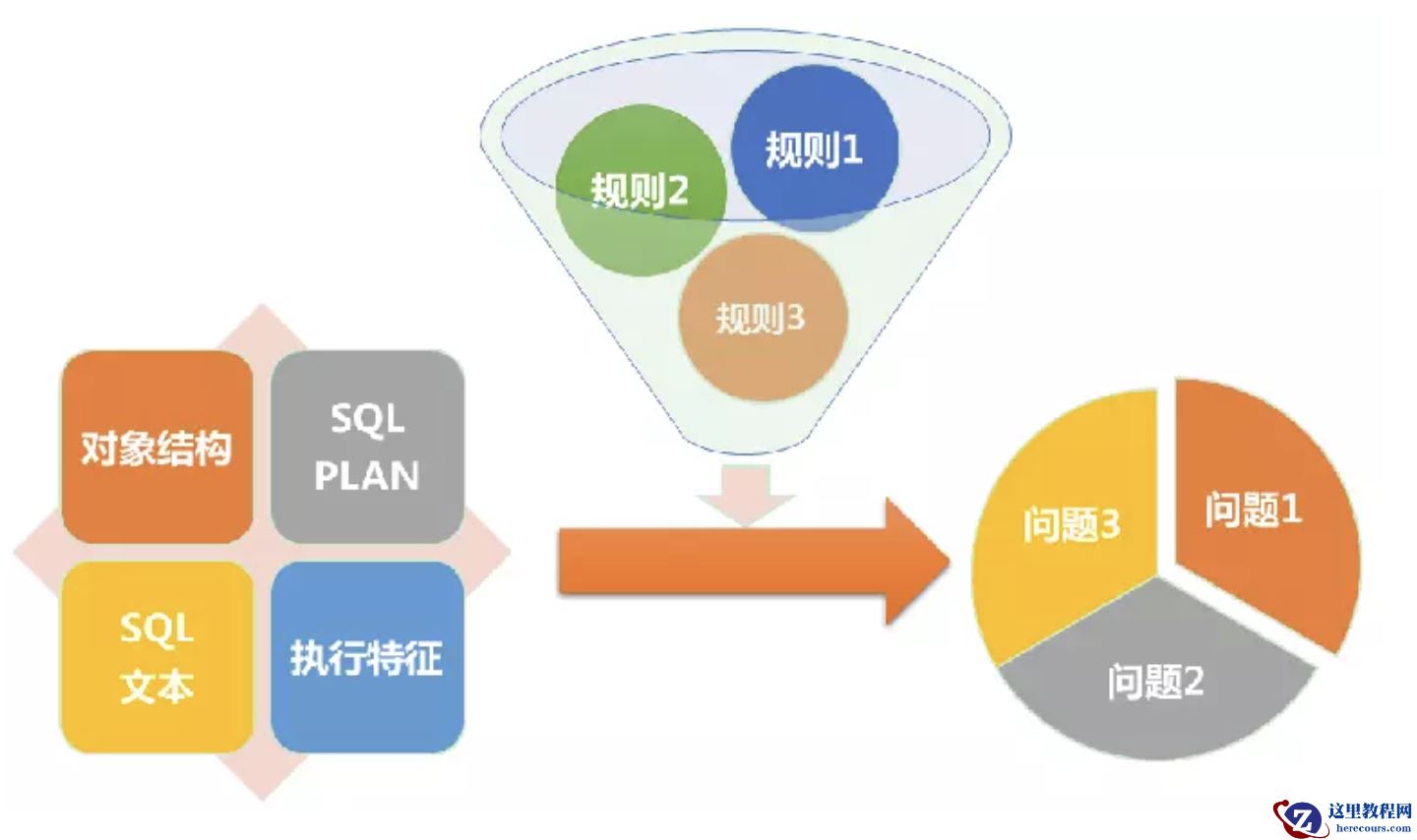
宜信开源|数据库审核软件Themis的规则解析与部署攻略
26-03-01 - 3Dmax创建壮观的三维空间爆炸效果

3Dmax创建壮观的三维空间爆炸效果
26-03-01 - CentOS hostnamectl命令详解(Linux系统主机名管理完整教程)
- 3dmax制作欧洲风格的老国王教程

3dmax制作欧洲风格的老国王教程
26-03-01 - 3DMAX制作科技独眼怪人建模教程

3DMAX制作科技独眼怪人建模教程
26-03-01 - Mysql 8.0 源码编译 多实例安装
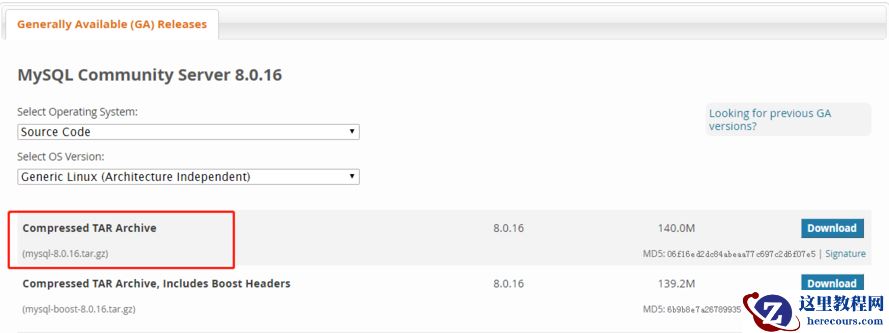
Mysql 8.0 源码编译 多实例安装
26-03-01 - 3dmax制作逼真的城市高楼大厦教程

3dmax制作逼真的城市高楼大厦教程
26-03-01 - MySQL入门--事务与锁
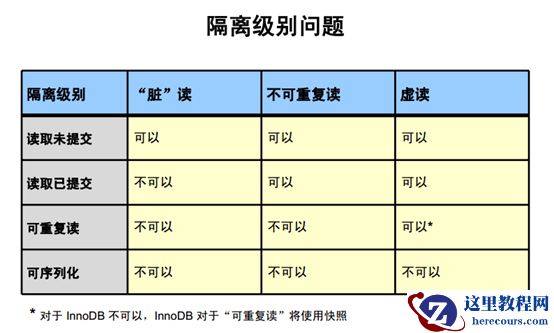
MySQL入门--事务与锁
26-03-01 - 3dmax制作超酷的室外效果图教程

3dmax制作超酷的室外效果图教程
26-03-01