[root@almalinux ~]# rpm -qa | grep -i mariadb [root@almalinux ~]# 安装前检查卸载以上 -bash: 安装前检查卸载以上: 未找到命令 [root@almalinux ~]# [root@almalinux ~]# [root@almalinux ~]# [root@almalinux ~]# ls /var/lib/mysql ls: 无法访问'/var/lib/mysql': 没有那个文件或目录 [root@almalinux ~]# ls /var/log/mysqld.log ls: 无法访问'/var/log/mysqld.log': 没有那个文件或目录 [root@almalinux ~]# ls /etc/my.cnf ls: 无法访问'/etc/my.cnf': 没有那个文件或目录 [root@almalinux ~]# rpm -qa | grep libaio libaio-0.3.112-1.el8.x86_64 [root@almalinux ~]# rpm -qa | grep net-tools net-tools-2.0-0.52.20160912git.el8.x86_64 安装MySQL(注意安装顺序,否则有依赖告警) [root@localhost ~]# rpm -ivh mysql-community-common-5.7.31-1.el7.x86_64.rpm [root@localhost ~]# rpm -ivh mysql-community-libs-5.7.31-1.el7.x86_64.rpm [root@localhost ~]# rpm -ivh mysql-community-libs-5.7.31-1.el7.x86_64.rpm [root@localhost ~]# rpm -ivh mysql-community-client-5.7.31-1.el7.x86_64.rpm [root@localhost ~]# rpm -ivh mysql-community-server-5.7.31-1.el7.x86_64.rpm [root@almalinux ~]# rpm -ivh mysql-community-client-5.7.31-1.el7.x86_64.rpm 警告:mysql-community-client-5.7.31-1.el7.x86_64.rpm: 头V3 DSA/SHA1 Signature, 密钥 ID 5072e1f5: NOKEY 错误:依赖检测失败: libncurses.so.5()(64bit) 被 mysql-community-client-5.7.31-1.el7.x86_64 需要 libtinfo.so.5()(64bit) 被 mysql-community-client-5.7.31-1.el7.x86_64 需要 --以上依赖包要安装 [root@almalinux ~]# yum install libncurses* [root@almalinux ~]# yum install libtinfo* --server 安装后提示 [/usr/lib/tmpfiles.d/elasticsearch.conf:1] Line references path below legacy directory /var/run/, updating /var/run/elasticsearch → /run/elasticsearch; please update the tmpfiles.d/ drop-in file accordingly. [/usr/lib/tmpfiles.d/mysql.conf:23] Line references path below legacy directory /var/run/, updating /var/run/mysqld → /run/mysqld; please update the tmpfiles.d/ drop-in file accordingly. [root@almalinux ~]# mysqladmin --version mysqladmin Ver 8.42 Distrib 5.7.31, for Linux on x86_64 [root@almalinux ~]# systemctl start mysqld.service [root@almalinux ~]# systemctl status mysqld.service ● mysqld.service - MySQL Server Loaded: loaded (/usr/lib/systemd/system/mysqld.service; enabled; vendor preset: disabled) Active: active (running) since Fri 2023-06-09 05:42:16 EDT; 1min 4s ago Docs: man:mysqld(8) http://dev.mysql.com/doc/refman/en/using-systemd.html Process: 31834 ExecStart=/usr/sbin/mysqld --daemonize --pid-file=/var/run/mysqld/mysqld.pid $MYSQLD_OPTS (code=exited, status=0/SUCCESS) Process: 31778 ExecStartPre=/usr/bin/mysqld_pre_systemd (code=exited, status=0/SUCCESS) Main PID: 31836 (mysqld) Tasks: 27 (limit: 23628) Memory: 347.0M CGroup: /system.slice/mysqld.service └─31836 /usr/sbin/mysqld --daemonize --pid-file=/var/run/mysqld/mysqld.pid 6月 09 05:42:06 almalinux.test.com systemd[1]: Starting MySQL Server... 6月 09 05:42:16 almalinux.test.com systemd[1]: Started MySQL Server. --安装后默认的初始密码 [root@almalinux ~]# grep 'temporary password' /var/log/mysqld.log 2023-06-09T09:42:12.811471Z 1 [Note] A temporary password is generated for root@localhost: f>c:x1Yd3j>1 mysql> ALTER USER 'root'@'localhost' IDENTIFIED BY 'passWWord'; Query OK, 0 rows affected (0.00 sec) mysql> quit Bye [root@almalinux ~]# systemctl restart mysqld.service [root@almalinux ~]# mysql -uroot -p Enter password: Welcome to the MySQL monitor. Commands end with ; or \g. Your MySQL connection id is 2 Server version: 5.7.31 MySQL Community Server (GPL) Copyright (c) 2000, 2020, Oracle and/or its affiliates. All rights reserved. Oracle is a registered trademark of Oracle Corporation and/or its affiliates. Other names may be trademarks of their respective owners. Type 'help;' or '\h' for help. Type '\c' to clear the current input statement. mysql> SHOW VARIABLES LIKE 'character%'; +--------------------------+----------------------------+ | Variable_name | Value | +--------------------------+----------------------------+ | character_set_client | utf8 | | character_set_connection | utf8 | | character_set_database | latin1 | | character_set_filesystem | binary | | character_set_results | utf8 | | character_set_server | latin1 | | character_set_system | utf8 | | character_sets_dir | /usr/share/mysql/charsets/ | +--------------------------+----------------------------+ 8 rows in set (0.01 sec) --my.cnf [root@almalinux ~]# more /etc/my.cnf [client] default-character-set=utf8 # For advice on how to change settings please see # http://dev.mysql.com/doc/refman/5.7/en/server-configuration-defaults.html [mysqld] # # Remove leading # and set to the amount of RAM for the most important data # cache in MySQL. Start at 70% of total RAM for dedicated server, else 10%. # innodb_buffer_pool_size = 128M # # Remove leading # to turn on a very important data integrity option: logging # changes to the binary log between backups. # log_bin # # Remove leading # to set options mainly useful for reporting servers. # The server defaults are faster for transactions and fast SELECTs. # Adjust sizes as needed, experiment to find the optimal values. # join_buffer_size = 128M # sort_buffer_size = 2M # read_rnd_buffer_size = 2M character-set-server=utf8 datadir=/var/lib/mysql socket=/var/lib/mysql/mysql.sock # Disabling symbolic-links is recommended to prevent assorted security risks symbolic-links=0 log-error=/var/log/mysqld.log pid-file=/var/run/mysqld/mysqld.pid validate_password = off --修改完成配置文件后重启生效 [root@almalinux ~]# systemctl restart mysqld.service [root@almalinux ~]# mysql -uroot -p Enter password: Welcome to the MySQL monitor. Commands end with ; or \g. Your MySQL connection id is 3 Server version: 5.7.31 MySQL Community Server (GPL) Copyright (c) 2000, 2020, Oracle and/or its affiliates. All rights reserved. Oracle is a registered trademark of Oracle Corporation and/or its affiliates. Other names may be trademarks of their respective owners. Type 'help;' or '\h' for help. Type '\c' to clear the current input statement. mysql> SHOW VARIABLES LIKE 'character%'; +--------------------------+----------------------------+ | Variable_name | Value | +--------------------------+----------------------------+ | character_set_client | utf8 | | character_set_connection | utf8 | | character_set_database | utf8 | | character_set_filesystem | binary | | character_set_results | utf8 | | character_set_server | utf8 | | character_set_system | utf8 | | character_sets_dir | /usr/share/mysql/charsets/ | +--------------------------+----------------------------+ 8 rows in set (0.00 sec) --接下来,初始化。 --如在已有生产数据前提下,注意数据位置初始化时会被覆盖。
MySQL 5.7.31 RPM方式 step by step install
来源:这里教程网
时间:2026-03-01 17:16:15
作者:
编辑推荐:
- MySQL 5.7.31 RPM方式 step by step install03-01
- mysql GTID模式跳过错误GTID事务的正确方法03-01
- MySQL:8.0 从库 MTS并发的定时炸弹03-01
- TiDB x Catalyst丨秒级洞悉数据价值,TiDB 帮助“客户成功 SaaS 厂商”提升用户体验03-01
- MySQL8新特性窗口函数详解03-01
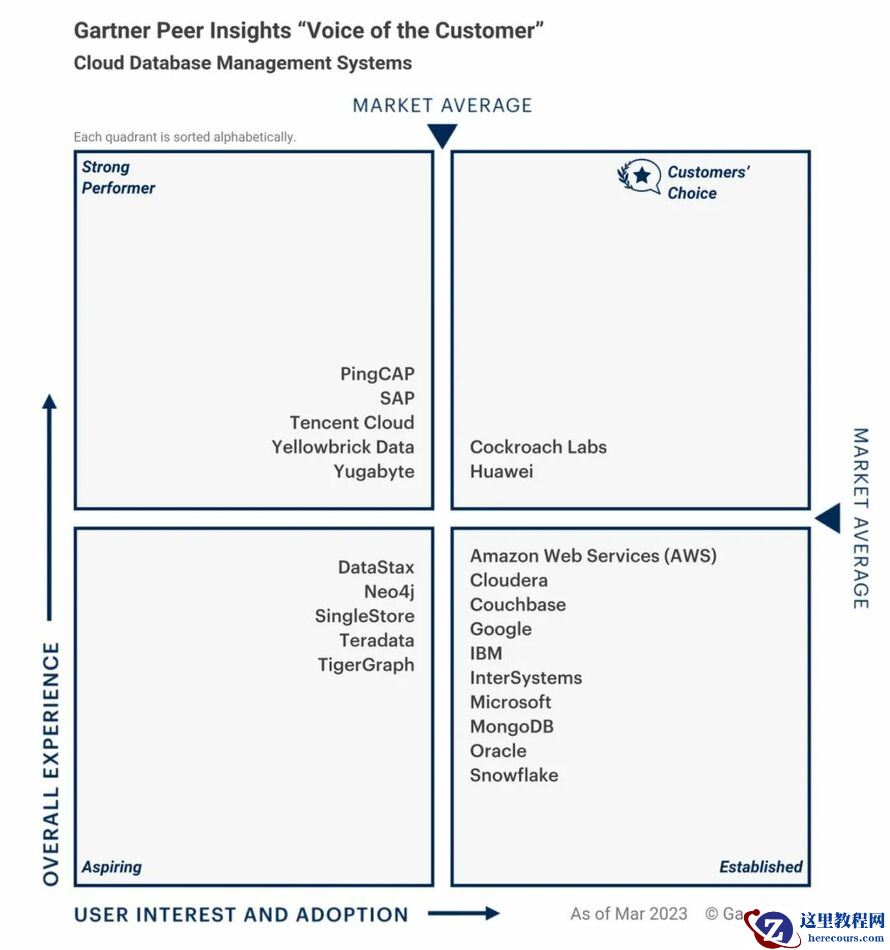
- 连续两年!PingCAP 入选 Gartner 云数据库“客户之声”,获评“卓越表现者”最高分03-01
- MYSQL 8 中间字段有NULL 值,还是无法走索引,所以我高估了MYSQL 的查询智商03-01
- 互联网公司为啥都不用MySQL分区表?03-01
下一篇:
相关推荐
-

-
-
-
-
-
-
-
-
-
-
-
-
-
-
雷神推出 MIX PRO II 迷你主机:基于 Ultra 200H,玻璃上盖 + ARGB 灯效
2 月 9 日消息,雷神 (THUNDEROBOT) 现已宣布推出基于英
-

制造商 Musnap 推出彩色墨水屏电纸书 Ocean C:支持手写笔、第三方安卓应用
2 月 10 日消息,制造商 Musnap 现已在海外推出一款 Oce

热文推荐
- MySQL:8.0 从库 MTS并发的定时炸弹
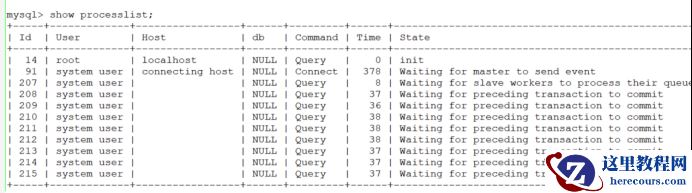
MySQL:8.0 从库 MTS并发的定时炸弹
26-03-01 - TiDB x Catalyst丨秒级洞悉数据价值,TiDB 帮助“客户成功 SaaS 厂商”提升用户体验
- MySQL8新特性窗口函数详解

MySQL8新特性窗口函数详解
26-03-01 - 连续两年!PingCAP 入选 Gartner 云数据库“客户之声”,获评“卓越表现者”最高分
- MYSQL 8 中间字段有NULL 值,还是无法走索引,所以我高估了MYSQL 的查询智商
- 慎用,Mybatis-Plus这个方法可能导致死锁
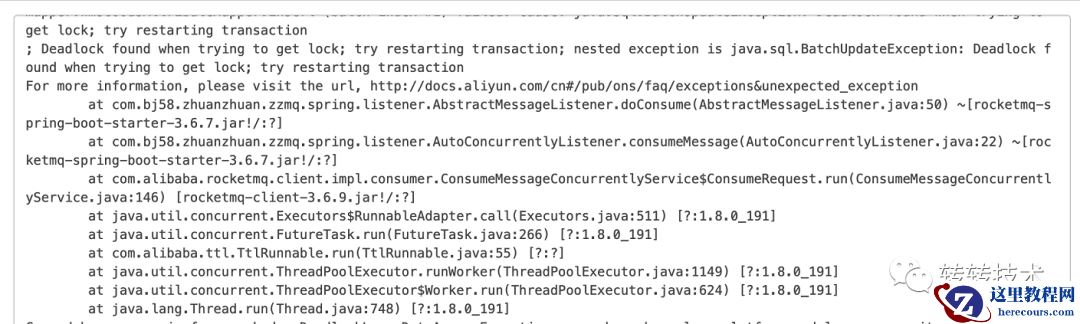
慎用,Mybatis-Plus这个方法可能导致死锁
26-03-01 - 应用不停服,风险可控!平滑升级分库分表去哪儿这么做~
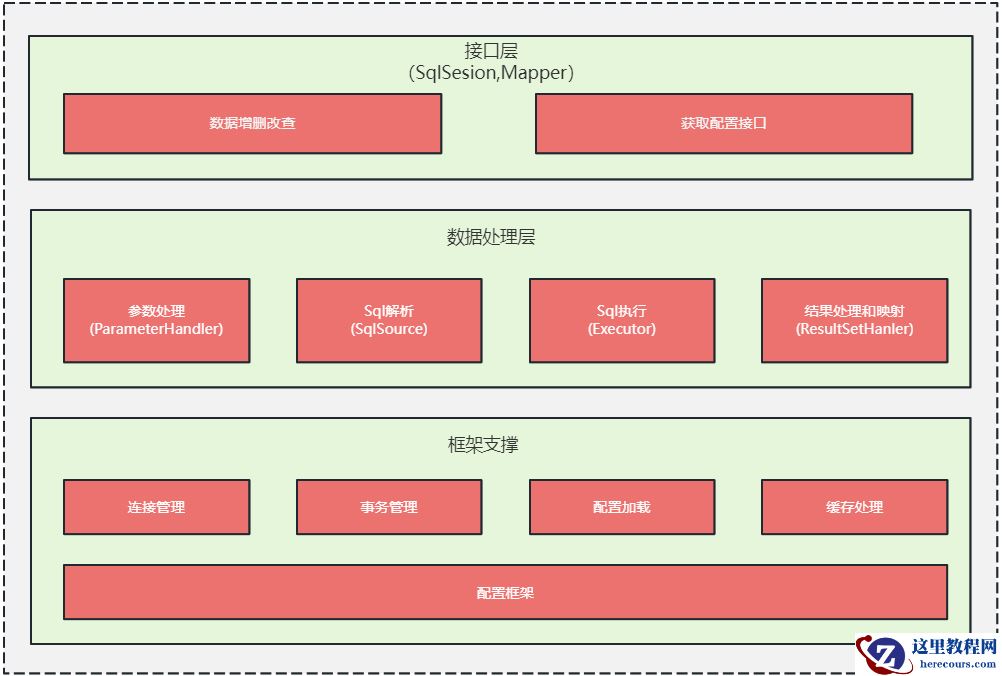
应用不停服,风险可控!平滑升级分库分表去哪儿这么做~
26-03-01 - SQL性能优化大揭秘,让你的MySQL飞起来!
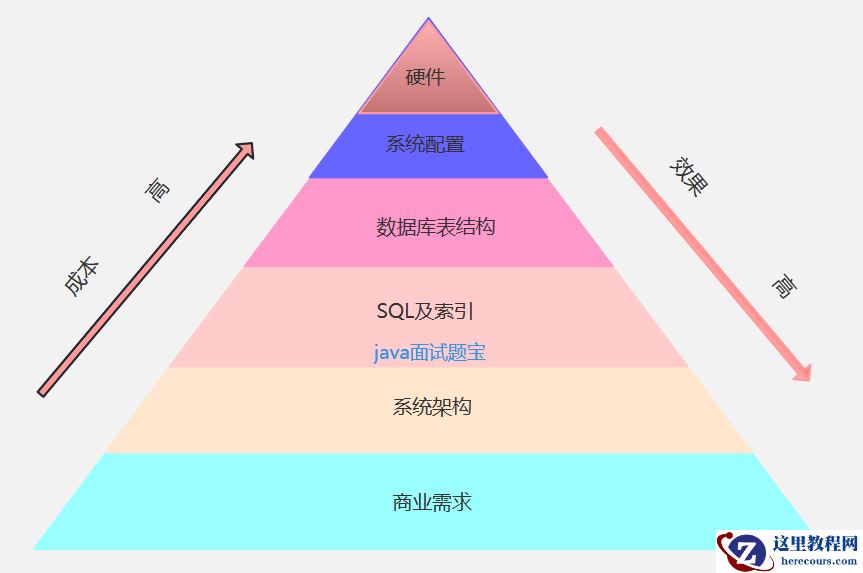
SQL性能优化大揭秘,让你的MySQL飞起来!
26-03-01 - MySQL:事务
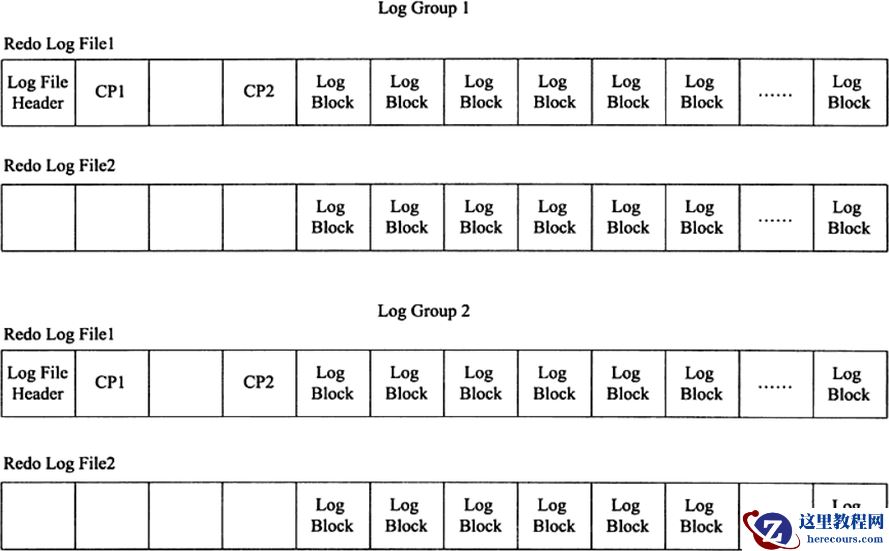
MySQL:事务
26-03-01 - MySQL:内存结构
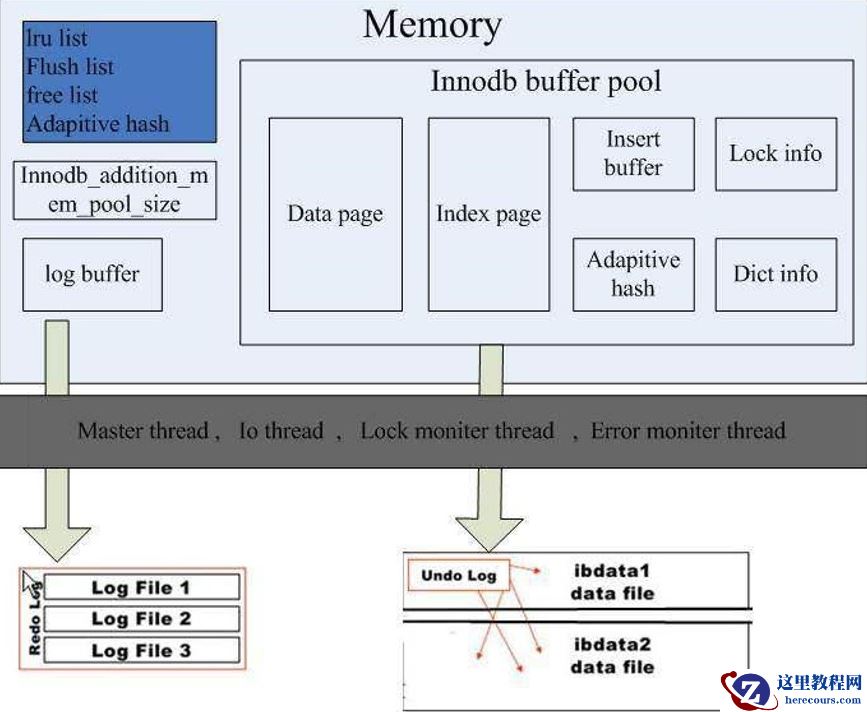
MySQL:内存结构
26-03-01