系统大全为您提供Microsoft Office开发工具 Visual Studio 2015的文章咨询供您阅读,如何使用Microsoft Office开发工具 Visual Studio 2015的方法对您有帮助也请您举手之劳分享给您身份的人。 针对Office开发工具微软推出了 Visual Studio 2015 ,支持Clang编译器和LLVM框架,同时可以为Android及未来的iOS开发应用。 Visual Studio 2015 支持Java、ANT、SQL LITE和WebSocket4web,提供原生的Git支持。用户可以在新版中尝试创建新的项目类型,下面将重点介绍一下安装步骤和新功能。 安装步骤如下: 如果还没安装Visual Studio 2015,立即点击获取Visual Studio Community 2015,完全免费! 通过aka.ms/GetLatestOfficeDevTools获取最新版本的Office开发套件。 请确保您已安装Outlook 2016。 新功能:支持外接应用是重点 Visual Studio 2015 的新功能有很多,除了能够原生地支持在ECMAScript 2015中定义的一部分新的语言结构,让Javascript编辑工具利用Visual Studio中自带的任务列表,让Javascript编辑更简单之外, Visual Studio 2015 还支持直接生成Linux二进制程序。但是,这里将着重介绍 Office外接应用的功能。 在 Visual Studio 2015新版 中,开发团队已经在Office外接应用中添加一个新的项目类型,叫做Outlook Add-in with Commands。外接应用可以在Outlook功能区添加按钮,启动外界程序显示菜单或者执行一个自定义的Javascript函数,为用户提供一个无缝的办公室体验。

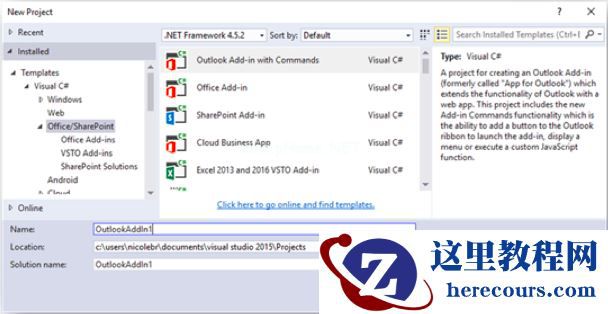
用VersionOverrides在清单中声明一个命令,忽略旧版本的Office,从而确保与用户的兼容性。 现在可以创建一个撰写电子邮件时插入自定义文本的外接程序。当报告有关问题时,客户支持人员通常需要询问更多的细节,给出使用说明如何查找版本,序列号等。它会非常方便—节省大量的时间—在Outlook中插入这种常见的文本按钮。开发团队还将逐步通过一个示例来创建一个写电子邮件时插入自定义文档的外接程序。 在Visual Studio 2015中,通过文件 > 新项目,选择模板 > Office/SharePoint > Outlook Add-in with Commands创建新 Outlook 外接程序命令项目:
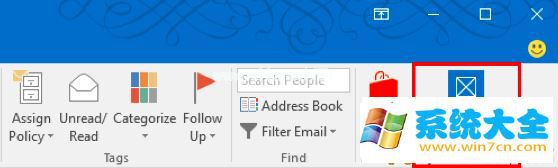
若要查看这些按钮,在解决方案管理器中选择OutlookAddIn节点,在属性窗口中将启动操作改为办公室桌面客户端,然后启动Outlook 2016,并按F5:
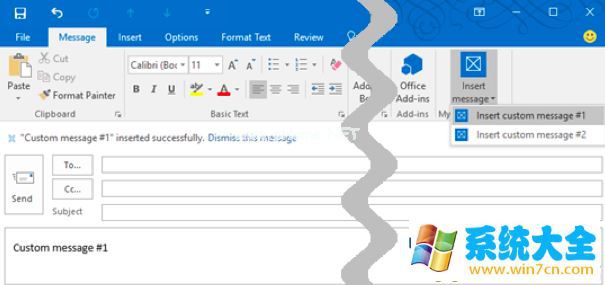
正如你所看到的,通过选择显示所有的属性按钮启动外界程序,当用户阅读信息时(在清单中定义MessageRead)出现在功能区。现在当用户在撰写邮件 (MessageCompose 表面) 时在功能区添加一个菜单按钮。 停止调试,然后在解决方案资源管理器上点击OutlookAddInManifest节点,并打开 XML 文件清单。 在</ExtensionPoint>标签结束处,向MessageCompose内添加一个添加菜单按钮的ExtensionPoint标签。 … <ExtensionPointxsi:type="MessageComposeCommandSurface"> < OfficeTabid="TabDefault"> < Groupid="msgComposeDemoGroup"> < Labelresid="groupLabel" /> < Controlxsi:type="Menu"id="msgComposeMenuButton"> < Labelresid="menuComposeButtonLabel" /> < Supertip> < Titleresid="menuComposeSuperTipTitle" /> < Descriptionresid="menuComposeSuperTipDescription" /> < /Supertip> < Icon> < bt:Imagesize="16"resid="icon16" /> < bt:Imagesize="32"resid="icon32" /> < bt:Imagesize="80"resid="icon80" /> < /Icon> < Items> < Itemid="msgComposeMenuItem1"> < Labelresid="menuItem1ComposeLabel" /> < Supertip> < Titleresid="menuItem1ComposeLabel" /> < Descriptionresid="menuItem1ComposeTip " /> < /Supertip> < Icon> < bt:Imagesize="16"resid="icon16" /> < bt:Imagesize="32"resid="icon32" /> < bt:Imagesize="80"resid="icon80" /> < /Icon> < Actionxsi:type="ExecuteFunction"> < FunctionName>addMsg1ToBody</FunctionName> < /Action> < /Item> < Itemid="msgComposeMenuItem2"> < Labelresid="menuItem2ComposeLabel" /> < Supertip> < Titleresid="menuItem2ComposeLabel" /> < Descriptionresid="menuItem2ComposeTip " /> < /Supertip> < Icon> < bt:Imagesize="16"resid="icon16" /> < bt:Imagesize="32"resid="icon32" /> < bt:Imagesize="80"resid="icon80" /> < /Icon> < Actionxsi:type="ExecuteFunction"> < FunctionName>addMsg2ToBody</FunctionName> < /Action> < /Item> < /Items> < /Control> < /Group> < /OfficeTab> < /ExtensionPoint> … 在清单末尾的Resources节点处,用下面的代码替换 ShortStrings 和 LongStrings的节点 … <bt:ShortStrings> < bt:Stringid="groupLabel"DefaultValue="My Add-in Group"/> < bt:Stringid="paneReadButtonLabel"DefaultValue="Display all properties"/> < bt:Stringid="paneReadSuperTipTitle"DefaultValue="Get all properties"/> < bt:Stringid="menuComposeButtonLabel"DefaultValue="Insert message"/> < bt:Stringid="menuComposeSuperTipTitle"DefaultValue="Choose a message to insert"/> < bt:Stringid="menuItem1ComposeLabel"DefaultValue="Insert custom message #1"/> < bt:Stringid="menuItem2ComposeLabel"DefaultValue="Insert custom message #2"/> < /bt:ShortStrings> < bt:LongStrings> < bt:Stringid="paneReadSuperTipDescription"DefaultValue="Opens a pane displaying all available properties. This is an example of a button that opens a task pane."/> < bt:Stringid="menuComposeButtonTooltip"DefaultValue="Inserts your choice of text into body of the message."/> < bt:Stringid="menuComposeSuperTipDescription"DefaultValue="Inserts your choice of text into body of the message. This is an example of a drop-down menu button."/> < bt:Stringid="menuItem1ComposeTip"DefaultValue="Inserts custom message #1 into the body of the email." /> < bt:Stringid="menuItem2ComposeTip"DefaultValue="Inserts custom message #2 into the body of the email." /> < /bt:LongStrings> … 最后,在 functions/functions.js 的结尾处添加一些自定义的 Javascript 函数: … // Adds text into the body of the item, then reports the results to the info bar. function addTextToBody(text, icon, event) { Office.context.mailbox.item.body.setSelectedDataAsync(text, { coercionType: Office.CoercionType.Text }, function (asyncResult) { if (asyncResult.status == Office.AsyncResultStatus.Succeeded) { statusUpdate(icon, """ + text + "" inserted successfully."); } else { Office.context.mailbox.item.notificationMessages.addAsync("addTextError", { type: "errorMessage", message: "Failed to insert "" + text + "": " + asyncResult.error.message }); } event.completed(); }); } function addMsg1ToBody(event) { addTextToBody("Custom message #1", "icon16", event); } function addMsg2ToBody(event) { addTextToBody("Custom message #2", "icon16", event); } 现在运行外接程序查看新菜单。因为我们将菜单添加到MessageCompose上,你需要点击Outlook 2016左上角的创建新邮件图标创建一封新邮件。
以上就是系统大全给大家介绍的如何使用Microsoft Office开发工具 Visual Studio 2015的方法了,如何使用Microsoft Office开发工具 Visual Studio 2015的方法到这里也全部结束了相信大家对如何使用Microsoft Office开发工具 Visual Studio 2015的方法都有一定的了解了吧,好了,如果大家还想了解更多的资讯,那就赶紧点击系统大全官网吧。 本文来自系统大全https://www.herecours.com/d/file/p/2026/0216/2026021611392072795