



Linux下安装MySQL 5.7

来源:这里教程网 时间:2026-03-01 15:12:13 作者:

本次将在Linux下通过yum安装MySQL,安装的版本为MySQL 5.7,官网中是最新版本8.0,在网上查了下,发现最新版本的yum源也包含了旧版本,而我们,只需要在安装时启用 5.7 的安装即可。

本人环境:CentOS 7.3 64位

  • 1.检查CentOS是否有系统自带的mysql

    yum list installed | grep mysql

    如果存在系统自带的mysql及依赖,则通过  yum remove 将其卸载

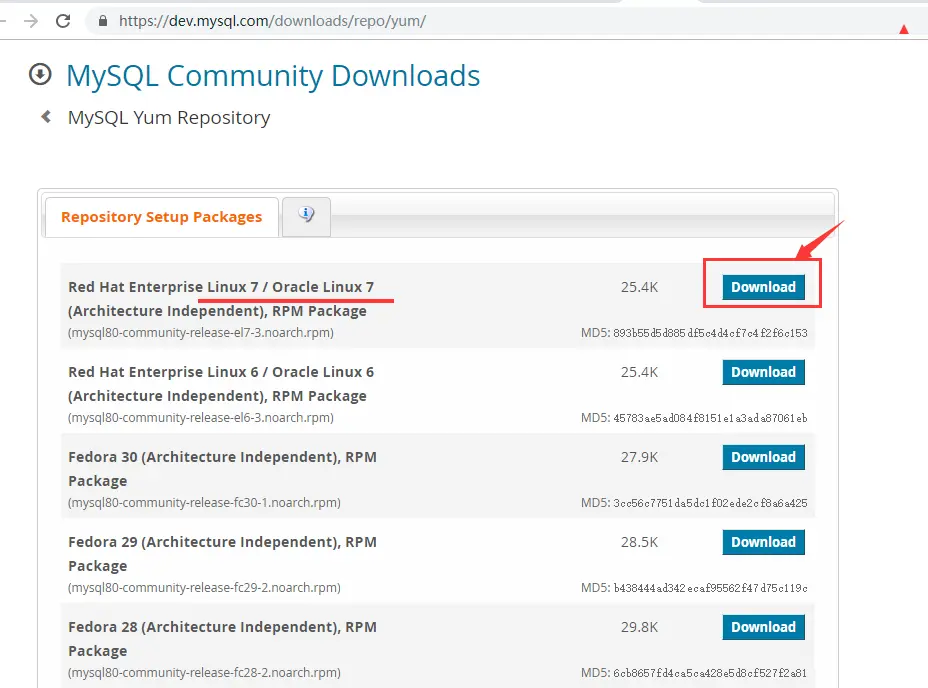
  • 2.在官网中获取yum源

    官网下载界面

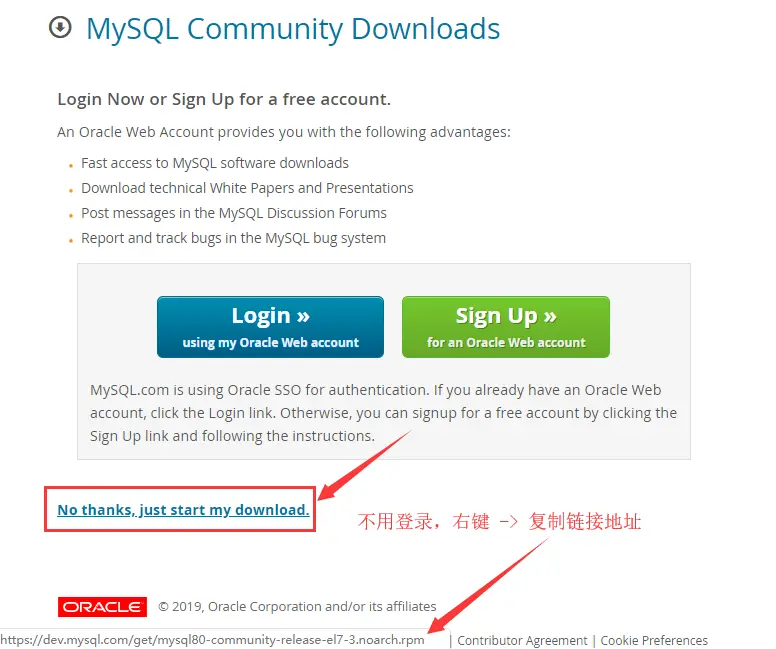
    获取下载链接

    这里获取到的是最新版本的下载地址: https://dev.mysql.com/get/mysql80-community-release-el7-3.noarch.rpm

  • 3.CentOS中下载rpm包,并安装本地mysql源

    下载rpm包: wget  https://dev.mysql.com/get/mysql80-community-release-el7-3.noarch.rpm --no-check-certificate 安装mysql源: yum localinstall mysql80-community-release-el7-3.noarch.rpm

    通过  yum localinstall 安装mysql源,可以帮助我们解决本地rpm包的依赖问题。

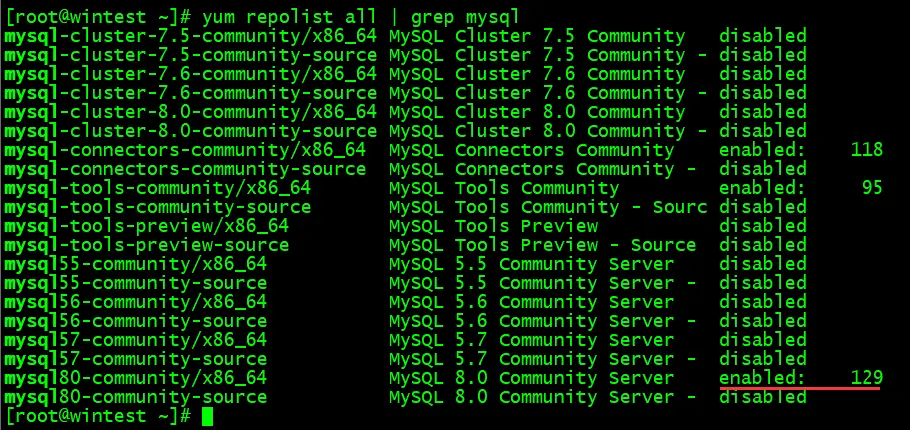
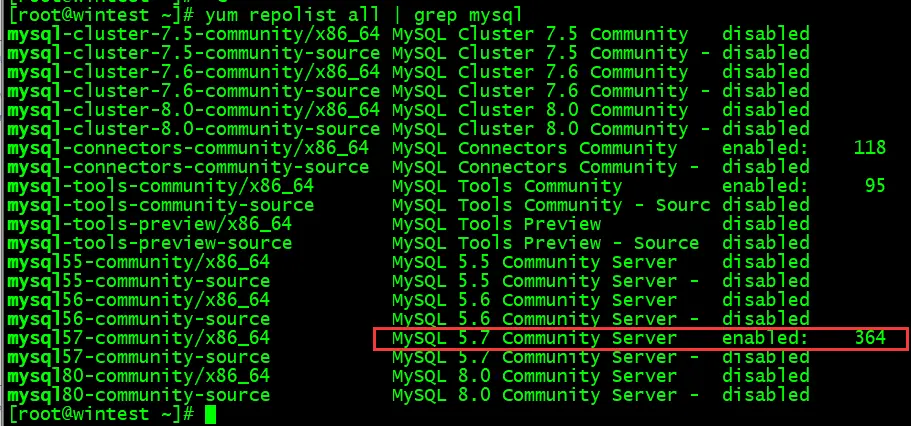
    最后,验证是否安装成功: yum repolist all | grep mysql

    验证是否安装成功

  • 4.修改默认安装版本为5.7

    从上面的图片,我们可以看到,默认是MySQL 8.0可用,我们若想安装MySQL 5.7,则需启用5.7。接下来通过直接修改配置文件来设置启用。

    vim /etc/yum.repos.d/mysql-community.repo

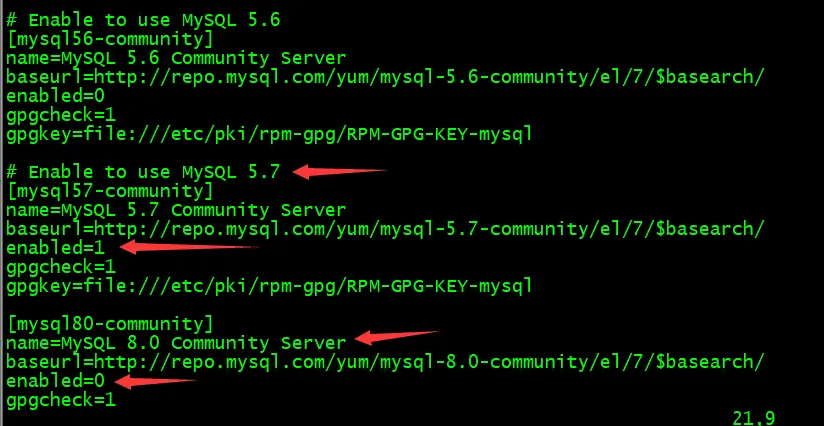
    输入上面的命令,在编辑界面,先输入  i 进入编辑模式,将8.0的  enabled 设置为0,将5.7的  enabled 设置为1,如下:

    image.png

    接着按  Esc 退出编辑模式,最后输入  :wq 保存并退出。

    再次输入命令: yum repolist all | grep mysql ,可以看到8.0已被禁用,而5.7是启用的。

    验证结果

  • 5.安装MySQL

    yum install mysql-community-server

    输入上面命令,进行安装即可。

    点我复制[root@wintest mysql]# yum install mysql-community-server
    Loaded plugins: fastestmirror
    Loading mirror speeds from cached hostfile
    Resolving Dependencies--> Running transaction check---> Package mysql-community-server.x86_64 0:5.7.27-1.el7 will be installed--> Processing Dependency: mysql-community-common(x86-64) = 5.7.27-1.el7 for package: mysql-community-server-5.7.27-1.el7.x86_64--> Processing Dependency: mysql-community-client(x86-64) >= 5.7.9 for package: mysql-community-server-5.7.27-1.el7.x86_64--> Processing Dependency: libaio.so.1(LIBAIO_0.4)(64bit) for package: mysql-community-server-5.7.27-1.el7.x86_64--> Processing Dependency: libaio.so.1(LIBAIO_0.1)(64bit) for package: mysql-community-server-5.7.27-1.el7.x86_64--> Processing Dependency: libaio.so.1()(64bit) for package: mysql-community-server-5.7.27-1.el7.x86_64--> Running transaction check---> Package libaio.x86_64 0:0.3.109-13.el7 will be installed---> Package mysql-community-client.x86_64 0:5.7.27-1.el7 will be installed--> Processing Dependency: mysql-community-libs(x86-64) >= 5.7.9 for package: mysql-community-client-5.7.27-1.el7.x86_64---> Package mysql-community-common.x86_64 0:5.7.27-1.el7 will be installed--> Running transaction check---> Package mariadb-libs.x86_64 1:5.5.52-1.el7 will be obsoleted--> Processing Dependency: libmysqlclient.so.18()(64bit) for package: 2:postfix-2.10.1-6.el7.x86_64--> Processing Dependency: libmysqlclient.so.18(libmysqlclient_18)(64bit) for package: 2:postfix-2.10.1-6.el7.x86_64---> Package mysql-community-libs.x86_64 0:5.7.27-1.el7 will be obsoleting--> Running transaction check---> Package mysql-community-libs-compat.x86_64 0:5.7.27-1.el7 will be obsoleting---> Package postfix.x86_64 2:2.10.1-6.el7 will be updated---> Package postfix.x86_64 2:2.10.1-7.el7 will be an update--> Finished Dependency ResolutionDependencies Resolved
    ==================================================================================== Package                       Arch     Version           Repository           Size
    ====================================================================================
    Installing:
     mysql-community-libs          x86_64   5.7.27-1.el7      mysql57-community   2.2 M
         replacing  mariadb-libs.x86_64 1:5.5.52-1.el7
     mysql-community-libs-compat   x86_64   5.7.27-1.el7      mysql57-community   2.0 M
         replacing  mariadb-libs.x86_64 1:5.5.52-1.el7
     mysql-community-server        x86_64   5.7.27-1.el7      mysql57-community   165 M
    Installing for dependencies:
     libaio                        x86_64   0.3.109-13.el7    base                 24 k
     mysql-community-client        x86_64   5.7.27-1.el7      mysql57-community    24 M
     mysql-community-common        x86_64   5.7.27-1.el7      mysql57-community   275 k
    Updating for dependencies:
     postfix                       x86_64   2:2.10.1-7.el7    base                2.4 M
    Transaction Summary
    ====================================================================================
    Install  3 Packages (+3 Dependent packages)
    Upgrade             ( 1 Dependent package)
    Total download size: 197 MIs this ok [y/d/N]: y
    Downloading packages:
    Delta RPMs disabled because /usr/bin/applydeltarpm not installed.
    (1/7): libaio-0.3.109-13.el7.x86_64.rpm                      |  24 kB  00:00:00     warning: /var/cache/yum/x86_64/7/mysql57-community/packages/mysql-community-common-5.7.27-1.el7.x86_64.rpm: Header V3 DSA/SHA1 Signature, key ID 5072e1f5: NOKEY
    Public key for mysql-community-common-5.7.27-1.el7.x86_64.rpm is not installed
    (2/7): mysql-community-common-5.7.27-1.el7.x86_64.rpm        | 275 kB  00:00:01     (3/7): mysql-community-libs-5.7.27-1.el7.x86_64.rpm          | 2.2 MB  00:00:01     (4/7): mysql-community-libs-compat-5.7.27-1.el7.x86_64.rpm   | 2.0 MB  00:00:01     (5/7): postfix-2.10.1-7.el7.x86_64.rpm                       | 2.4 MB  00:00:00     (6/7): mysql-community-client-5.7.27-1.el7.x86_64.rpm        |  24 MB  00:00:34     (7/7): mysql-community-server-5.7.27-1.el7.x86_64.rpm        | 165 MB  00:00:52     ------------------------------------------------------------------------------------Total                                                  3.5 MB/s | 197 MB  00:56     Retrieving key from file:///etc/pki/rpm-gpg/RPM-GPG-KEY-mysql
    Importing GPG key 0x5072E1F5:
     Userid     : "MySQL Release Engineering <mysql-build@oss.oracle.com>"
     Fingerprint: a4a9 4068 76fc bd3c 4567 70c8 8c71 8d3b 5072 e1f5 Package    : mysql80-community-release-el7-3.noarch (installed)
     From       : /etc/pki/rpm-gpg/RPM-GPG-KEY-mysqlIs this ok [y/N]: y
    Running transaction check
    Running transaction test
    Transaction test succeeded
    Running transaction
      Installing : mysql-community-common-5.7.27-1.el7.x86_64                       1/9 
      Installing : mysql-community-libs-5.7.27-1.el7.x86_64                         2/9 
      Installing : mysql-community-libs-compat-5.7.27-1.el7.x86_64                  3/9 
      Installing : mysql-community-client-5.7.27-1.el7.x86_64                       4/9 
      Installing : libaio-0.3.109-13.el7.x86_64                                     5/9 
      Installing : mysql-community-server-5.7.27-1.el7.x86_64                       6/9 
      Updating   : 2:postfix-2.10.1-7.el7.x86_64                                    7/9 
      Cleanup    : 2:postfix-2.10.1-6.el7.x86_64                                    8/9 
      Erasing    : 1:mariadb-libs-5.5.52-1.el7.x86_64                               9/9 
      Verifying  : mysql-community-libs-compat-5.7.27-1.el7.x86_64                  1/9 
      Verifying  : mysql-community-common-5.7.27-1.el7.x86_64                       2/9 
      Verifying  : mysql-community-libs-5.7.27-1.el7.x86_64                         3/9 
      Verifying  : 2:postfix-2.10.1-7.el7.x86_64                                    4/9 
      Verifying  : mysql-community-server-5.7.27-1.el7.x86_64                       5/9 
      Verifying  : mysql-community-client-5.7.27-1.el7.x86_64                       6/9 
      Verifying  : libaio-0.3.109-13.el7.x86_64                                     7/9 
      Verifying  : 1:mariadb-libs-5.5.52-1.el7.x86_64                               8/9 
      Verifying  : 2:postfix-2.10.1-6.el7.x86_64                                    9/9 Installed:
      mysql-community-libs.x86_64 0:5.7.27-1.el7                                        
      mysql-community-libs-compat.x86_64 0:5.7.27-1.el7                                 
      mysql-community-server.x86_64 0:5.7.27-1.el7                                      
    Dependency Installed:
      libaio.x86_64 0:0.3.109-13.el7                                                    
      mysql-community-client.x86_64 0:5.7.27-1.el7                                      
      mysql-community-common.x86_64 0:5.7.27-1.el7                                      
    Dependency Updated:
      postfix.x86_64 2:2.10.1-7.el7                                                     
    Replaced:
      mariadb-libs.x86_64 1:5.5.52-1.el7                                                
    Complete!
  • 6.启用MySQL

    在CentOS 6中,我们一般通过  service mysqld start 来启动mysql,在CentOS 7中,如果直接输入  service mysqld start ,则会出现以下信息:

    启用mysql

    这是因为 CentOS 7 下重启服务不再通过  service 操作,而是通过  systemctl 操作,因此我们可以输入命令:

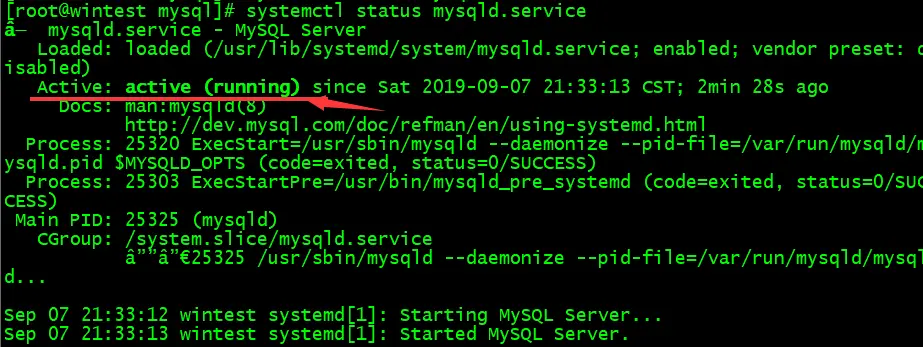
    启动mysql: systemctl start mysqld.service 查看mysql状态: systemctl status mysqld.service

    查看mysql服务状态

  • 7.登录mysql

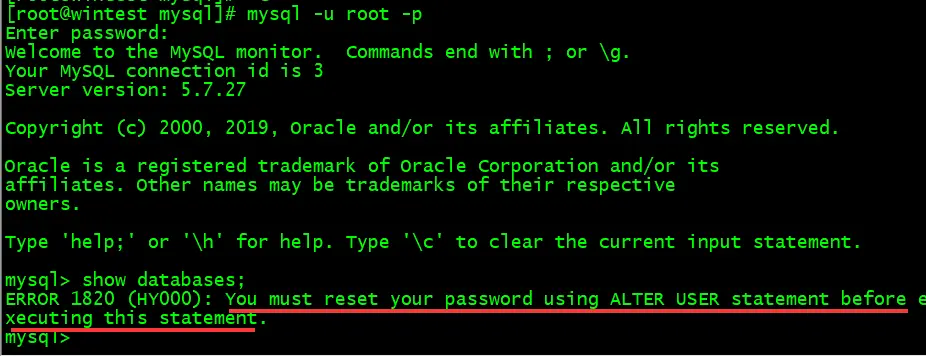
    mysql -u root -p

    登录mysql

    在要求输入密码时,因为mysql 5.7的初始密码不是空,直接按回车键不能成功登录,因此需先找到初始密码,才能登录。

    grep 'temporary password' /var/log/mysqld.log

    获取初始密码

    如上,最后的内容就是初始密码。

    再次登录,输入初始密码,即可成功登录。

    再次登录

    第一次登录成功后,发现不能执行操作,同时提示让修改密码。

  • 8.修改登录密码

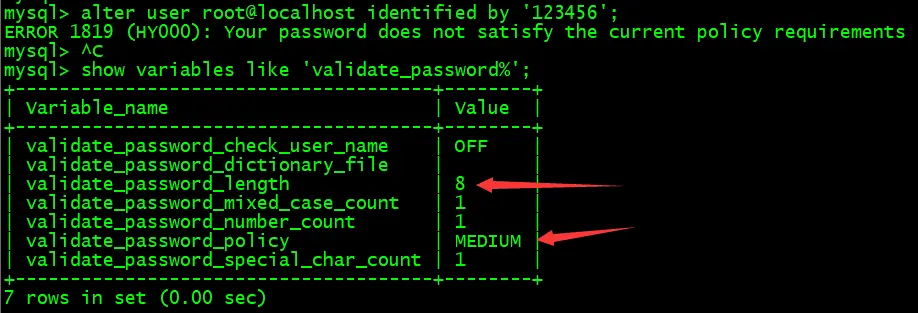
    alter user root@localhost identified by '新密码'

    修改密码失败

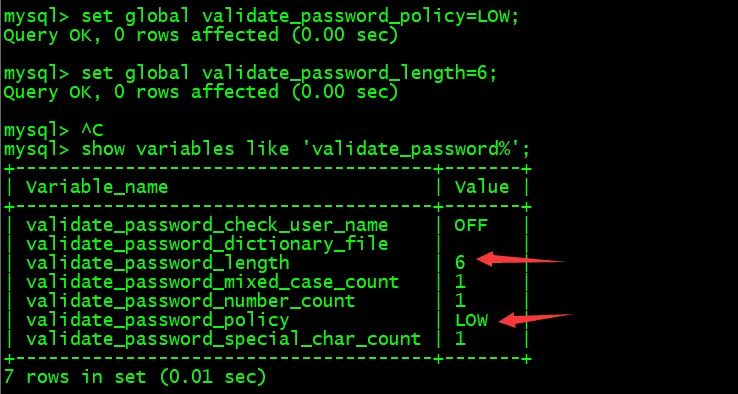
    这里,我想设置新密码为 123456,但出现了报错,这里的报错是mysql的密码策略问题,输入命令: show variables like 'validate_password%',查看 mysql 初始的密码策略,发现密码的最小长度为8,密码的验证强度等级为MEDIUM,可以修改一下密码策略:

    设置密码的验证强度等级: set global validate_password_policy=LOW 设置密码的最小长度: set global validate_password_length=6

    修改密码策略

    好了,这时我们再次执行修改密码的sql,便不会报错了。

    最后通过  flush privileges 刷新权限,使当前操作立即生效,就大功告成了。

    修改密码成功

    注意:最后这里,也可以不修改密码策略,只要自己设置的密码满足MySQL的原密码策略即可。

    mysql 添加远程访问

    第一种:mysql 5.0(两种方式)

    一、

    在命令窗口输入,mysql -u root -p  回车,并输入密码

    执行 use mysql 

    执行下面句子,查看权限,root默认权限为localhost

    select user,host from user;

    更改root权限为%

    update user set host = '%' where user = 'root';

    刷新

    flush privileges;

    二、

    在命令窗口输入,mysql -u root -p  回车,并输入密码

    执行 use mysql 

    设置test为账户,密码为:ceshipwd,权限为%,所有人

    grant all on *.*  to 'test'@'%' identified by 'ceshipwd';

    如果权限不设置为所有人,可设定固定访问IP如下:

    grant all on *.*  to 'test'@'111.111.111.111' identified by 'ceshipwd';

    最后,刷新

    flush privileges;


    第一种:mysql 8.0以上(两种方式)

    一、

    在命令窗口输入,mysql -u root -p  回车,并输入密码

    执行 use mysql 

    执行下面句子,查看权限,root默认权限为localhost

    select user,host from user;

    更改root权限为%

    update user set host = '%' where user = 'root';

    刷新

    flush privileges;

    二、

    在命令窗口输入,mysql -u root -p  回车,并输入密码

    执行 use mysql 

    设置test为账户,密码为:ceshipwd,权限为%,所有人

    先建立账号:

    create user 'test'@'%' identified with mysql_native_password by 'ceshipwd';

    再添加账号权限

    grant all on *.*  to 'test'@'%';

    如果权限不设置为所有人,可设定固定访问IP如下:

    grant all on *.*  to 'test'@'111.111.111.111';

    最后,刷新

    flush privileges;

    三、

    各版本修改密码的格式:

    mysql5.0格式如下:

    本地可以访问

    alter user 'ceshi'@'localhost' identified   by 'ceshipw';

    所有都可以访问

    alter user 'ceshi'@'%' identified   by 'ceshipw';

    mysql8.0以上格式如下:

    本地可以访问

    alter user 'ceshi'@'localhost' identified with mysql_native_password  by 'ceshipw';

    所有都可以访问

    alter user 'ceshi'@'%' identified  with mysql_native_password by 'ceshipw';


    *使用navicat连接mysql8.0数据库时,提示1251-client does not support authentication protocol requested by server;consider upgrading mysql client 解决办法:

    进入数据库,更新一下认证格式
    user mysql;
    #下面方式是修改密码的格式,即可正常访问
    alter user 'ceshi'@'%' identified  with mysql_native_password by 'ceshipw';
    flush privileges;

  • 相关推荐